
Modernize your GetResponse account with email intelligence. SafeReact adds an intelligence layer to your GetResponse contacts, scoring every dormant, inactive, and suppressed record so you can protect deliverability and drive reactivation revenue from the list you already paid to build.
Each contact is scored on four pillars: Reachable, Responsive, Relevant, and Ready. Two protect your list by flagging invalid addresses, spam traps, bots, and role-based emails before they hurt sender reputation. Two make it worth money by surfacing recent engagement and purchase intent, so you can identify the contacts worth winning back.
Unique email data appends make SafeReact one tool that does both: reduce risk and protect sender reputation, while delivering the insight and enriched contact data you need to power conversion funnels and lifecycle emails. Scores and appends sync to GetResponse as custom fields, ready for segmentation, automation, and targeted reactivation campaigns. Setup takes 2 minutes.
How to connect
- 1
Log in to SafeReact
Log in to SafeReact at app.safereact.com (link opens in a new tab).
- 2
Use your trial credits
New accounts include trial credits so you can test right away. After onboarding, skip the upload steps and go directly to your dashboard.
- 3
Open the GetResponse integration
Go to Integrations > GetResponse.
- 4
Connect your GetResponse account
Follow the login workflow to connect your GetResponse account to SafeReact.
- 5
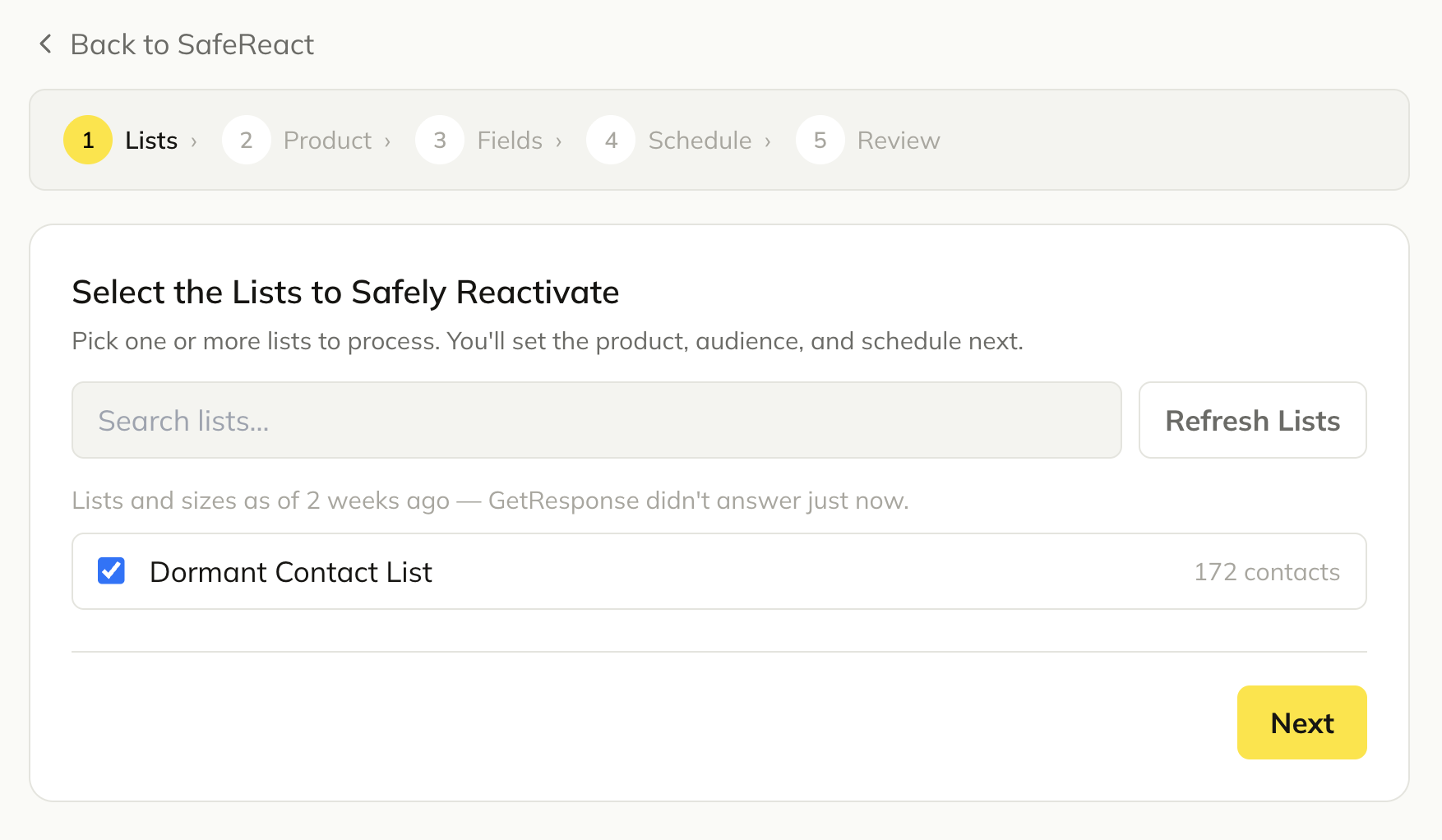
Select your lists
Select the lists you want to safely reactivate.
- 6
Select Audience Reactivation
Select Audience Reactivation. Runs are billed against the Audience Reactivation package included with this product.
Note: Select Email Activity to get insights into 3rd party email engagement. This is billed as a separate append.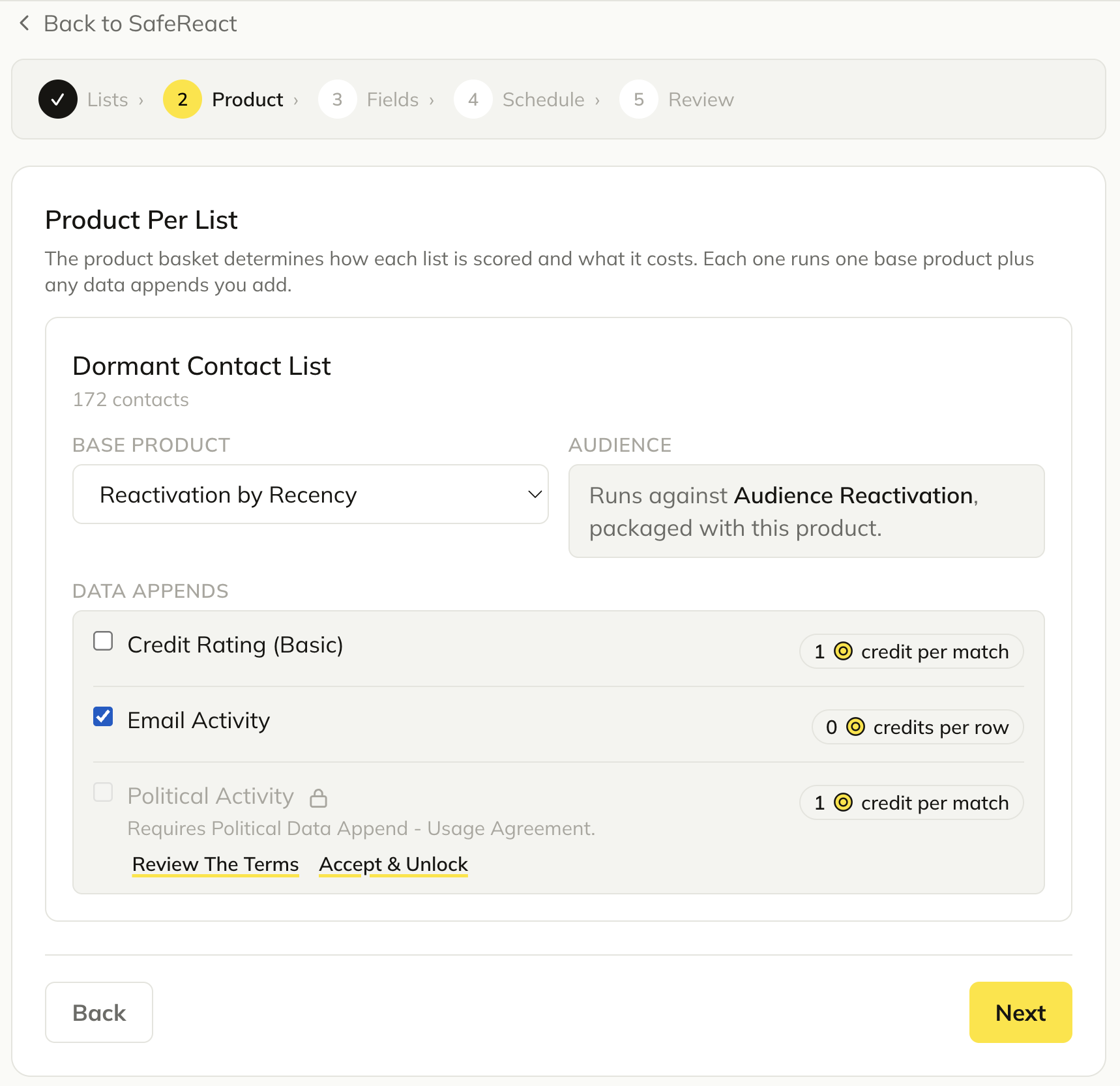
- 7
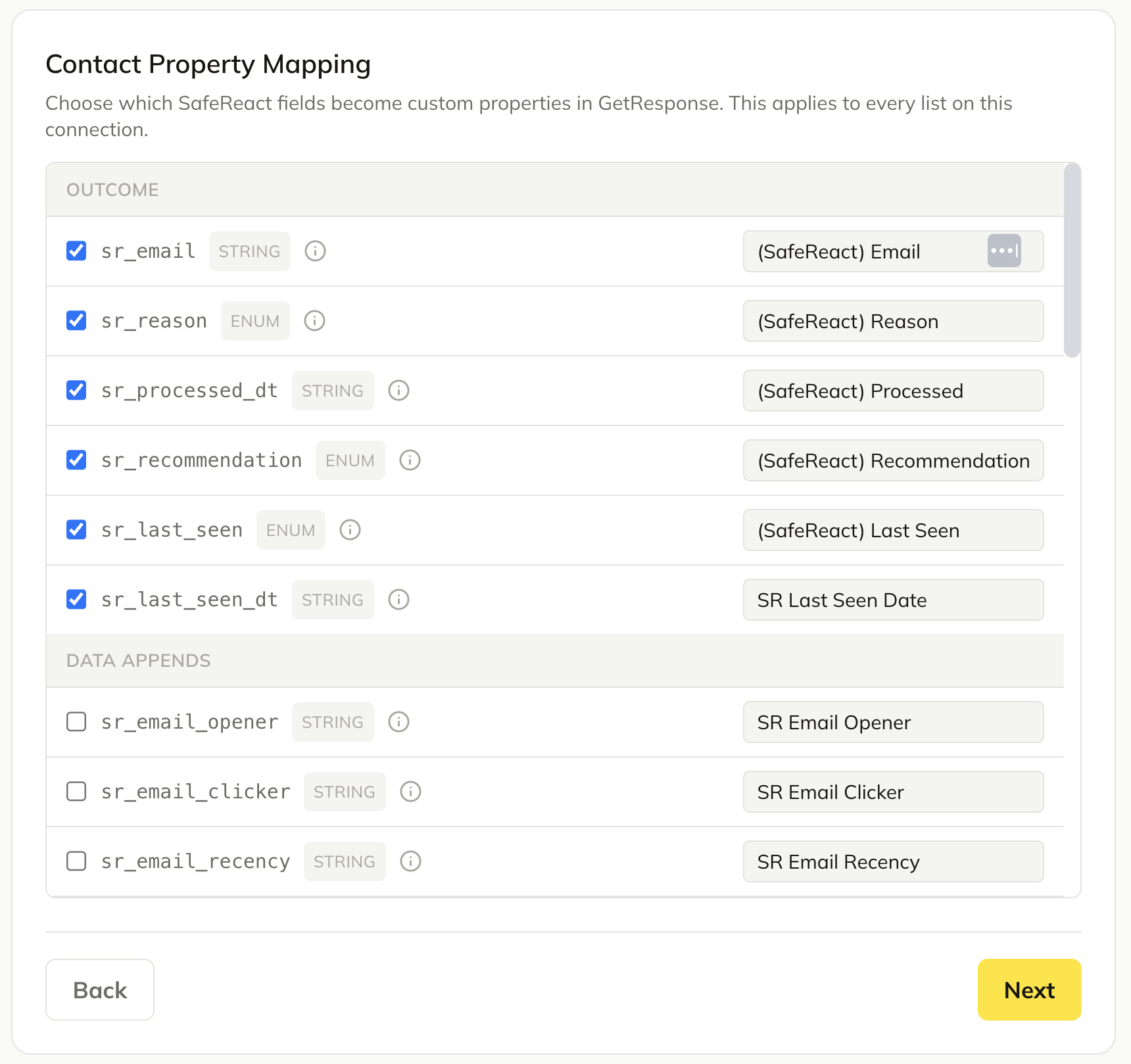
Map contact properties
Contact Property Mapping: choose which SafeReact fields become custom fields in GetResponse. This applies to every list on this connection.
- -To flag spam traps, bots, role-based addresses, and other hygiene issues, include the hygiene fields. Otherwise, exclude them.
- 8
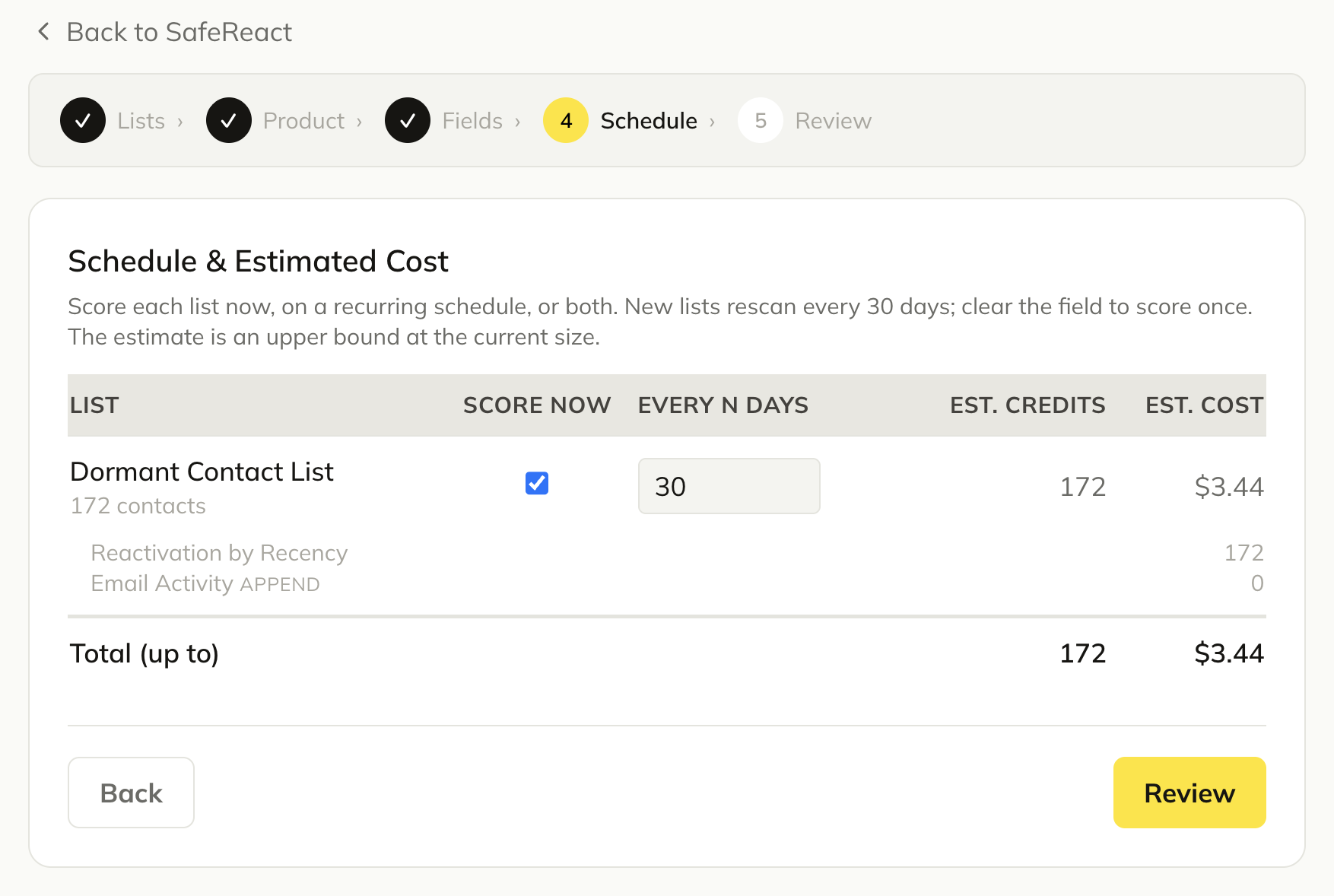
Review the periodic costs
Review the periodic costs.
- 9
Confirm and finish
Confirm and finish.
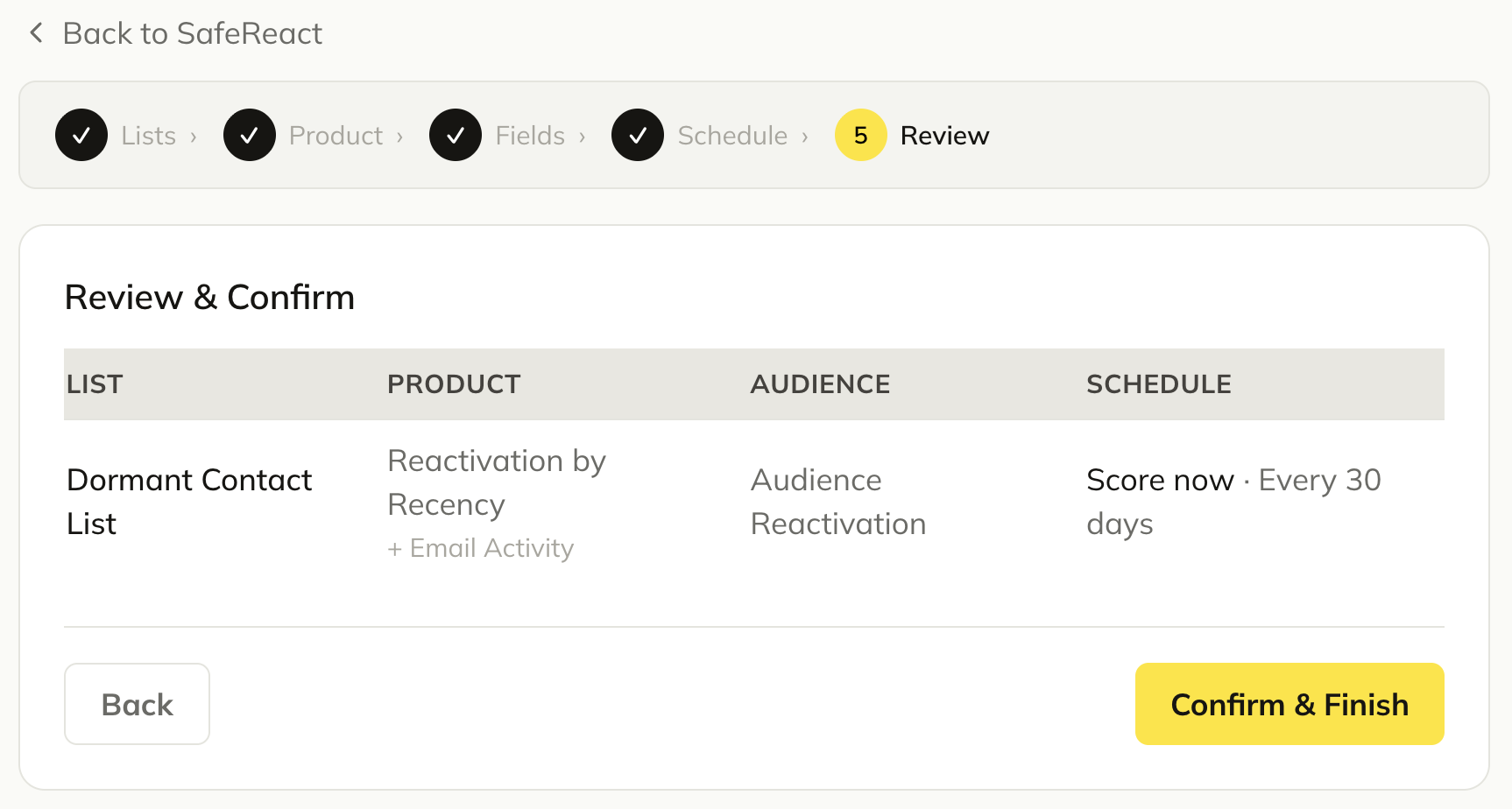
Note: Processing takes 15 to 20 minutes. Results appear as custom fields on your contacts in GetResponse, ready for segmentation and automation.
Ready to connect GetResponse?
Start your free trial and score your first 10,000 records free.
Start free trial